The “Hybrid Working” dream sounds great until you realise your rental flat doesn’t have a spare room for a home office.
So, you work from the dining table. Or a small desk in the corner of the bedroom.
You are stuck hunching over a single 13-inch laptop screen, drowning in spreadsheets, missing the dual-monitor setup you had in the corporate office.
You can’t buy a massive 27-inch Dell monitor because:
- No Space: It takes up the whole table.
- No Storage: Where do you put it at 5 PM when you want to eat dinner?
The solution? The Portable USB-C Monitor.
These look like an iPad, but they are fully functioning 15.6-inch screens. They plug into your laptop with one cable, double your workspace, and crucially slide into a drawer when the work day is done.
We tested the best-selling models to see which ones are bright enough for a sunny flat, which ones actually work with just one cable, and which ones feel flimsy vs. premium.
Visual Comparison: The “Pop-Up” Office
| Spec |
Arzopa A1 Gamut (15.6″)
|
UPERFECT Battery Monitor
|
Teamgee Laptop Extender
|
|---|---|---|---|
| Best For | Budget & Simplicity | Travel / No Draining | Power Users (Traders) |
| Screen Size | 15.6 Inch (Standard) | 15.6 Inch | Triple Screen (12-14″) |
| Connection | USB-C (Pass-through) | USB-C + Battery | USB-C / HDMI |
| Battery? | ✘ (Uses Laptop Power) | ✔ Built-in | ✘ (Uses Laptop Power) |
| Renter Rating |
The “One Cable” Myth
Before You Buy a Monitor
Check your laptop ports first
Modern Laptops
USB-C (Thunderbolt / DisplayPort)
Power + Video
- MacBook M1 / M2 / M3
- Dell XPS
- Most new Windows laptops
Older Laptops
HDMI Only
- 1× HDMI cable (for video)
- 1× USB power cable (to wall socket)
1. Top Pick: Arzopa A1 Gamut (15.6″)
Arzopa has taken over the UK market. It is the “Anker” of portable screens. It’s reliable, cheap, and good quality.
Why It’s Renter Friendly
- The “Drawer Factor”: It is incredibly thin (0.3 inches). When you finish work at 5 PM, you unplug it, put it in a slip case, and slide it into a cutlery drawer or a bookshelf. Your dining table becomes a home again instantly.
- Kickstand: Unlike older models that used a flimsy magnetic case (which always collapsed), the new Arzopa models often have a built-in kickstand. It stands up solid on a wobbly rental table.
Pros:
- Unbeatable value (often sub-£100).
- Great 1080p IPS screen (good viewing angles).
- Plug-and-Play with almost any modern device.
Cons:
- Power Drain: It draws power from your laptop. It will kill your laptop battery 30% faster if you aren’t plugged into the wall.
- Brightness is okay for indoors, but struggles in direct sunlight.
2. The “Travel” Pick: UPERFECT Battery Monitor
If you work in coffee shops, on trains, or just don’t want to drain your laptop battery, get a monitor with its own internal power source. UPERFECT is the go to brand here.
Why It’s Renter Friendly
- Built In Battery: It has a massive internal battery. This means it powers itself for 4-5 hours. You don’t need to hunt for a wall socket.
- Reverse Charging: In an emergency, it can actually charge your phone while you work.
Pros:
- Saves your laptop battery life.
- Often includes “Touchscreen” (check specific model).
- Brighter screen than the budget Arzopa.
Cons:
- Heavier and thicker (due to the battery).
- More expensive (~£150+).
3. The “Command Centre” Pick: Teamgee Laptop Extender
If you look at spreadsheets all day, one extra screen isn’t enough. You need a cockpit.
Teamgee makes a contraption that clamps onto your existing laptop lid and folds out two extra screens, giving you a triple monitor setup.
Why It’s Renter Friendly
- No Desk Space Needed: Because it hangs off your laptop screen, it doesn’t take up any extra “footprint” on the table. Perfect for tiny round dining tables.
- Foldable: It folds inwards like a book. You can pack the whole thing into a laptop bag.
Pros:
- Triple screen productivity (Email Left, Excel Middle, Teams Right).
- The ultimate “Flex” for WFH.
Cons:
- Heavy: It puts weight on your laptop hinges. Don’t leave it on 24/7.
- Cable Spaghetti: It often requires multiple cables to drive both screens. Setup takes 2-3 minutes every morning.
Annotated Manual: The “No Signal” Fix
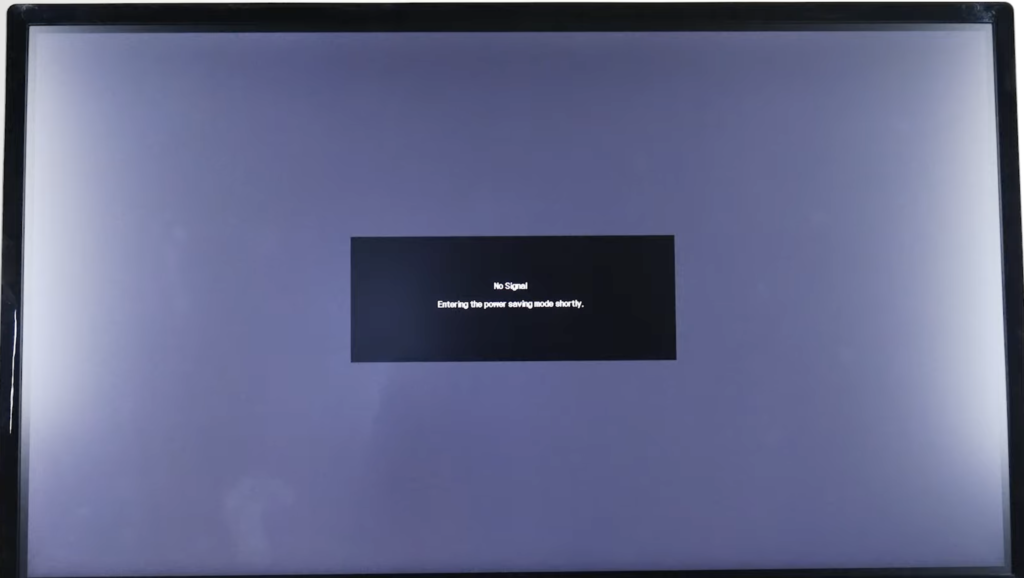
The #1 reason people return these monitors is the dreaded “No Signal” message.
This happens because your laptop isn’t sending enough power. Here is the manual’s solution decoded.
Scenario A: The “One Cable” Dream
- Laptop: Has USB-C Thunderbolt.
- Setup: Plug USB-C to USB-C.
- Fix: If the screen flickers or goes black when you turn the brightness up, your laptop port is weak. You must plug the monitor into a USB wall charger as well to boost the brightness.
Scenario B: The “HDMI” Reality
- Laptop: Only has HDMI.
- Setup:
- Plug HDMI to Mini-HDMI (Video).
- STOP. You are not done. The screen is black.
- Plug the USB-C power cable into a wall plug (or a USB port on the laptop).
- Result: Now it turns on. HDMI does not carry power.
Real-World Reality: Community Feedback
We checked r/DigitalNomad and Amazon Reviews to find the travel flaws.
1. “The Magnetic Case Collapse”
User Report: “The ‘Smart Case’ stand is rubbish. It slips every time I type too hard, and the monitor falls flat.”
💡 The Smart Tenant Fix:
Many budget monitors use an “iPad style” folding case stand. They are terrible.
Our Advice: Buy a cheap “Tablet Stand“ (metal easel) from Amazon for £8. Sit the monitor on that. It is rock solid, adjustable height, and saves your neck from looking down.
2. “The Colour mismatch”
User Report: “My MacBook screen looks rich and colourful, but the portable monitor looks washed out and blue.”
💡 The Smart Tenant Fix:
Out of the box, these monitors are set to “Eco” or “Office” mode which looks terrible.
Our Advice: Spend 5 minutes in the OSD (On Screen Display) menu.
- Turn Blue Light Filter: OFF.
- Set Colour Temp to “Warm” or “sRGB”.
- Boost Contrast to 70%.
- It won’t match a Retina display, but it will look 10x better.
Frequently Asked Questions
Can I use this with my phone?
Yes, if you have a high end Android (Samsung S-Series with DeX). You can plug your phone into the monitor and it turns into a desktop computer interface. iPhones (before iPhone 15) usually need a messy adapter dongle. iPhone 15/16 (USB-C) works directly.
Does it work with Mac?
Yes. MacBooks work brilliantly with the “One Cable” USB-C setup. However, standard MacBooks (non-Pro) only support one external display properly. If you buy the “Teamgee Triple” screen, check if your specific M1/M2 chip supports dual external displays (DisplayLink drivers might be required).
Is it touchscreen?
The standard Arzopa is not. You have to pay extra for a Touch model (like some UPERFECT versions). Note that Touchscreen usually doesn’t work on Mac OS, only Windows.
Verdict: Which Screen for Your Table?
- Best Value: Arzopa 15.6″. It works, it’s cheap, and it slides into a drawer. For 90% of renters, this is all you need.
- Best for Battery: UPERFECT. If you want to work from a cafe without hunting for a plug socket, get the internal battery model.
- Best for Traders/Coders: Teamgee. If you need three windows open at once, this transforms a tiny laptop into a productivity beast.