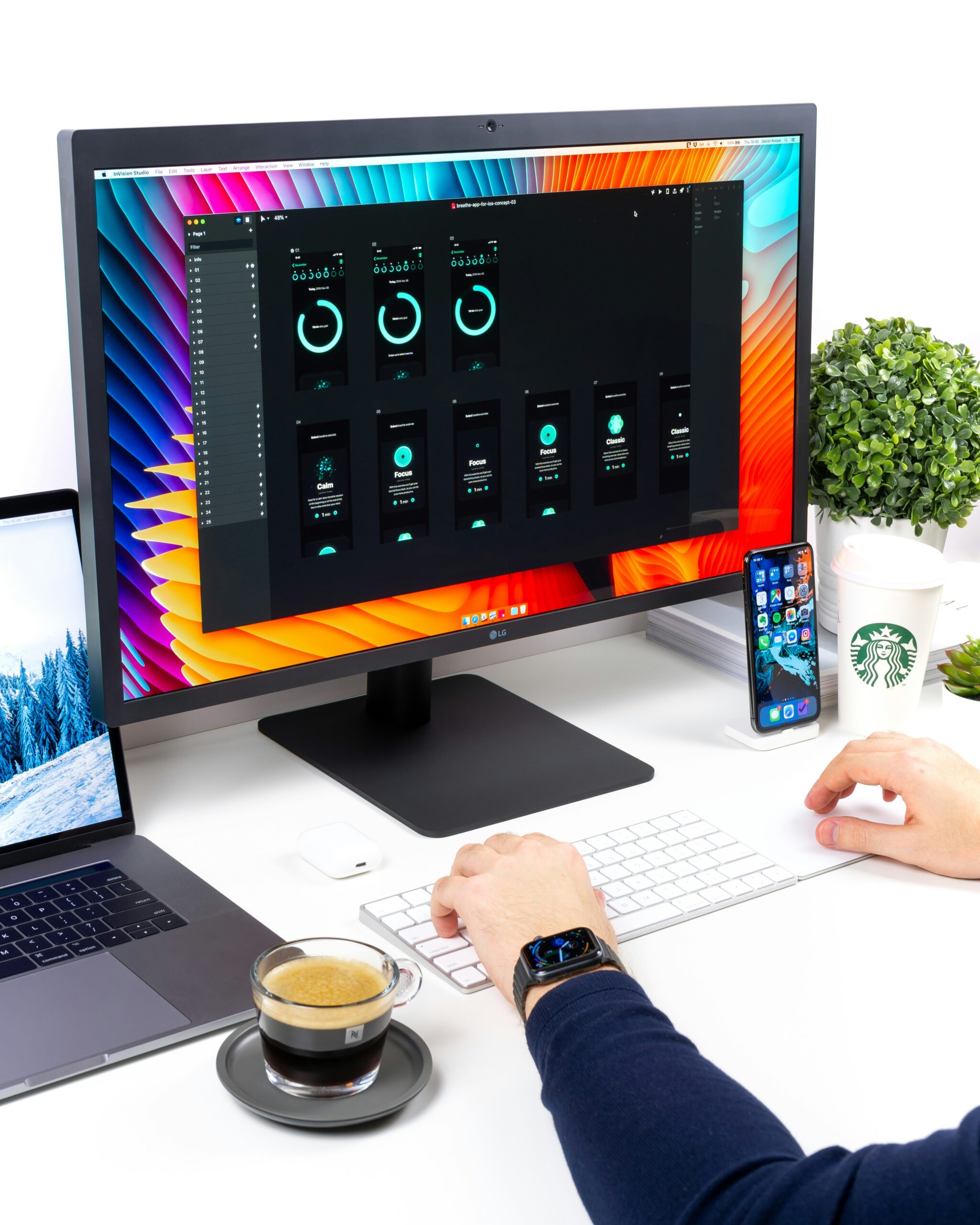
The “Hybrid Working” dream sounds great until you realise your rental flat doesn’t have a spare room for a home office.
So, you work from the dining table. Or a small desk in the corner of the bedroom.
You are stuck hunching over a single 13-inch laptop screen, drowning in spreadsheets, missing the dual-monitor setup you had in the corporate office.
You can’t buy a massive 27-inch Dell monitor because:
- No Space: It takes up the whole table.
- No Storage: Where do you put it at 5 PM when you want to eat dinner?
The solution? The Portable USB-C Monitor.
These look like an iPad, but they are fully functioning 15.6-inch screens. They plug into your laptop with one cable, double your workspace, and crucially slide into a drawer when the work day is done.
We tested the best-selling models to see which ones are bright enough for a sunny flat, which ones actually work with just one cable, and which ones feel flimsy vs. premium.
Visual Comparison: The “Pop-Up” Office
| Spec | Arzopa A1 Gamut (15.6″) | UPERFECT Battery Monitor | Teamgee Laptop Extender |
| Best For | Budget & Simplicity | Travel / No Draining | Power Users (Traders) |
| Screen Size | 15.6 Inch (Standard) | 15.6 Inch | Triple Screen (12-14″) |
| Connection | USB-C (Pass-through) | USB-C + Battery | USB-C / HDMI |
| Battery? | ❌ (Uses Laptop Power) | ✅ Built-in | ❌ (Uses Laptop Power) |
| Renter Rating | ⭐⭐⭐⭐⭐ | ⭐⭐⭐⭐⭐ | ⭐⭐⭐⭐ |
The “One Cable” Myth
Before you buy, check your laptop ports.
- USB-C (Thunderbolt / DisplayPort): If you have a modern laptop (MacBook M1/M2, Dell XPS), you can use one single cable to send both power and video. It is magic.
- HDMI Only: If you have an older laptop with only HDMI, you will need two cables. One for video (HDMI) and one for power (USB to Wall Socket). This makes the desk messier.
1. Top Pick: Arzopa A1 Gamut (15.6″)
Arzopa has taken over the UK market. It is the “Anker” of portable screens. It’s reliable, cheap, and good quality.
Why It’s Renter Friendly
- The “Drawer Factor”: It is incredibly thin (0.3 inches). When you finish work at 5 PM, you unplug it, put it in a slip case, and slide it into a cutlery drawer or a bookshelf. Your dining table becomes a home again instantly.
- Kickstand: Unlike older models that used a flimsy magnetic case (which always collapsed), the new Arzopa models often have a built-in kickstand. It stands up solid on a wobbly rental table.
Pros:
- Unbeatable value (often sub-£100).
- Great 1080p IPS screen (good viewing angles).
- Plug-and-Play with almost any modern device.
Cons:
- Power Drain: It draws power from your laptop. It will kill your laptop battery 30% faster if you aren’t plugged into the wall.
- Brightness is okay for indoors, but struggles in direct sunlight.
2. The “Travel” Pick: UPERFECT Battery Monitor
If you work in coffee shops, on trains, or just don’t want to drain your laptop battery, get a monitor with its own internal power source. UPERFECT is the go to brand here.
Why It’s Renter Friendly
- Built In Battery: It has a massive internal battery. This means it powers itself for 4-5 hours. You don’t need to hunt for a wall socket.
- Reverse Charging: In an emergency, it can actually charge your phone while you work.
Pros:
- Saves your laptop battery life.
- Often includes “Touchscreen” (check specific model).
- Brighter screen than the budget Arzopa.
Cons:
- Heavier and thicker (due to the battery).
- More expensive (~£150+).
3. The “Command Centre” Pick: Teamgee Laptop Extender
If you look at spreadsheets all day, one extra screen isn’t enough. You need a cockpit.
Teamgee makes a contraption that clamps onto your existing laptop lid and folds out two extra screens, giving you a triple monitor setup.
Why It’s Renter Friendly
- No Desk Space Needed: Because it hangs off your laptop screen, it doesn’t take up any extra “footprint” on the table. Perfect for tiny round dining tables.
- Foldable: It folds inwards like a book. You can pack the whole thing into a laptop bag.
Pros:
- Triple screen productivity (Email Left, Excel Middle, Teams Right).
- The ultimate “Flex” for WFH.
Cons:
- Heavy: It puts weight on your laptop hinges. Don’t leave it on 24/7.
- Cable Spaghetti: It often requires multiple cables to drive both screens. Setup takes 2-3 minutes every morning.
Annotated Manual: The “No Signal” Fix
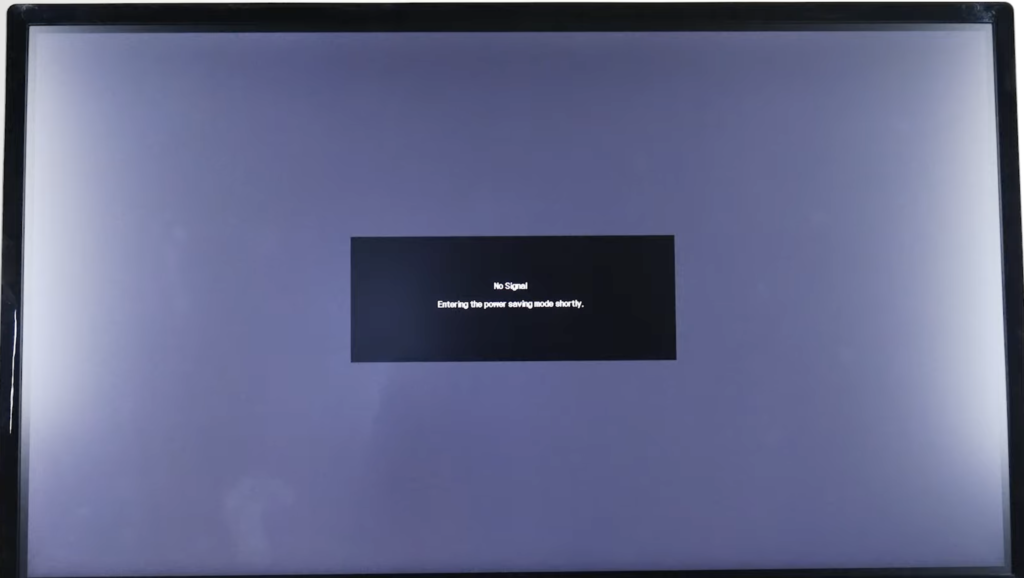
The #1 reason people return these monitors is the dreaded “No Signal” message.
This happens because your laptop isn’t sending enough power. Here is the manual’s solution decoded.
Scenario A: The “One Cable” Dream
- Laptop: Has USB-C Thunderbolt.
- Setup: Plug USB-C to USB-C.
- Fix: If the screen flickers or goes black when you turn the brightness up, your laptop port is weak. You must plug the monitor into a USB wall charger as well to boost the brightness.
Scenario B: The “HDMI” Reality
- Laptop: Only has HDMI.
- Setup:
- Plug HDMI to Mini-HDMI (Video).
- STOP. You are not done. The screen is black.
- Plug the USB-C power cable into a wall plug (or a USB port on the laptop).
- Result: Now it turns on. HDMI does not carry power.
Real-World Reality: Community Feedback
We checked r/DigitalNomad and Amazon Reviews to find the travel flaws.
1. “The Magnetic Case Collapse”
User Report: “The ‘Smart Case’ stand is rubbish. It slips every time I type too hard, and the monitor falls flat.”
💡 The Smart Tenant Fix:
Many budget monitors use an “iPad style” folding case stand. They are terrible.
Our Advice: Buy a cheap “Tablet Stand“ (metal easel) from Amazon for £8. Sit the monitor on that. It is rock solid, adjustable height, and saves your neck from looking down.
2. “The Colour mismatch”
User Report: “My MacBook screen looks rich and colourful, but the portable monitor looks washed out and blue.”
💡 The Smart Tenant Fix:
Out of the box, these monitors are set to “Eco” or “Office” mode which looks terrible.
Our Advice: Spend 5 minutes in the OSD (On Screen Display) menu.
- Turn Blue Light Filter: OFF.
- Set Colour Temp to “Warm” or “sRGB”.
- Boost Contrast to 70%.
- It won’t match a Retina display, but it will look 10x better.
Frequently Asked Questions
Can I use this with my phone?
Yes, if you have a high end Android (Samsung S-Series with DeX). You can plug your phone into the monitor and it turns into a desktop computer interface. iPhones (before iPhone 15) usually need a messy adapter dongle. iPhone 15/16 (USB-C) works directly.
Does it work with Mac?
Yes. MacBooks work brilliantly with the “One Cable” USB-C setup. However, standard MacBooks (non-Pro) only support one external display properly. If you buy the “Teamgee Triple” screen, check if your specific M1/M2 chip supports dual external displays (DisplayLink drivers might be required).
Is it touchscreen?
The standard Arzopa is not. You have to pay extra for a Touch model (like some UPERFECT versions). Note that Touchscreen usually doesn’t work on Mac OS, only Windows.
Verdict: Which Screen for Your Table?
- Best Value: Arzopa 15.6″. It works, it’s cheap, and it slides into a drawer. For 90% of renters, this is all you need.
- Best for Battery: UPERFECT. If you want to work from a cafe without hunting for a plug socket, get the internal battery model.
- Best for Traders/Coders: Teamgee. If you need three windows open at once, this transforms a tiny laptop into a productivity beast.